Slide Scanning Services
The University Imaging Centers offers brightfield and fluorescence slide scanning services to internal and external researchers at each of our three facilities.
Costs for slide scanning services can be found on our rates page.
Submitting a Slide Scanning Service Request
Step 1 - Create your iLab Account
Establishing your iLab Account
All customers requesting slide scanning services through the UIC are required to have an active iLab account. Your iLab account will be utilized for billing purposes using the chart string provided in your order form.
If you do not currently have an iLab account, you must complete the registration process before your order will be fulfilled.
Step 2 - MSI Account
Establishing your MSI Account
The UIC partners with the Minnesota Supercomputing Institute (MSI) to deliver data to UMN researchers. If you are an external researcher not affiliated with the University please contact us at [email protected] to discuss data delivery options.
For more information on creating your MSI account, please visit our Transfer, Access, View, and Analyze Your Data page.
Step 3 - Submit a Slide Scanning Service Request
Submitting a slide scanning service request
After you have established your iLab and MSI accounts, please submit a slide scanning service request submission form.
Slide Scanning Service Submission Form
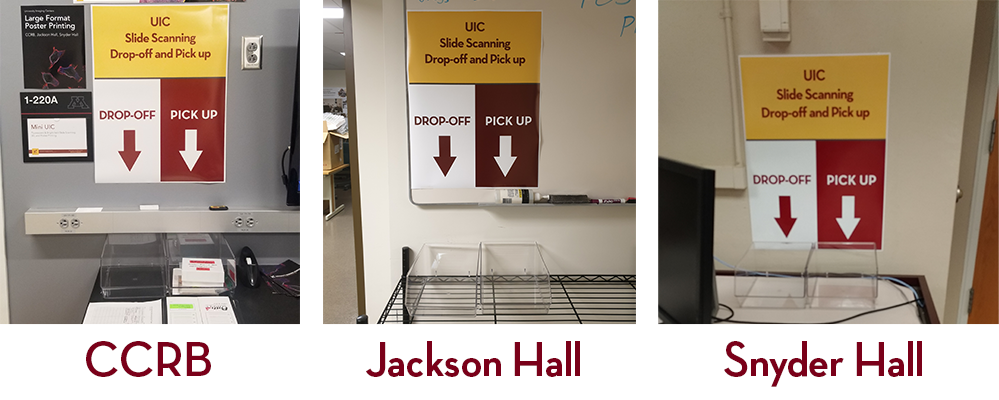
After we receive your order a UIC staff member will reach out to confirm your order. Slides can be dropped off at any UIC location.
- Cancer and Cardiovascular Research Building: Room 1-220
- Jackson Hall: Outside of room 1-151
- Snyder Hall: Room 23
Step 4 - Accessing your Slide Scan Data
Data Delivery:
When your slide scans are completed, UIC staff will transfer your scan data to your PI's MSI group. Your physical slides will also be put back at the drop off location for you to pick up.
UMN researchers will have their data delivered to the "data_delivery" folder in your group's folder on MSI's primary filesystem (home/GROUP/data_delivery/uic/slide_scanning).
We will then contact you via the email provided on your submission form to notify you that your service request has been completed and data delivered. Instructions for viewing your files will also be included in the email. Should you need additional assistance with the analysis of your data, please include a note in your submission form and a member of our team will contact you to discuss your analysis goals.
MSI instructions for accessing and transferring your data
Deliverables:
Brightfield Slide Scanning
The type of scan data we will deliver is based on the software selected on the slide scanning service request submission form.
| Viewing Software | Cost | Operating System | File Extension |
|---|---|---|---|
| FIJI | Free - Open Source | Windows & Mac OSX | .TIFF |
| QuPath | Free - Open Source | Windows & Mac OSX | .SVS |
| HuronViewer | Free | Windows | .TIFF |
Widefield Fluorescence and RNAscope Slide Scanning
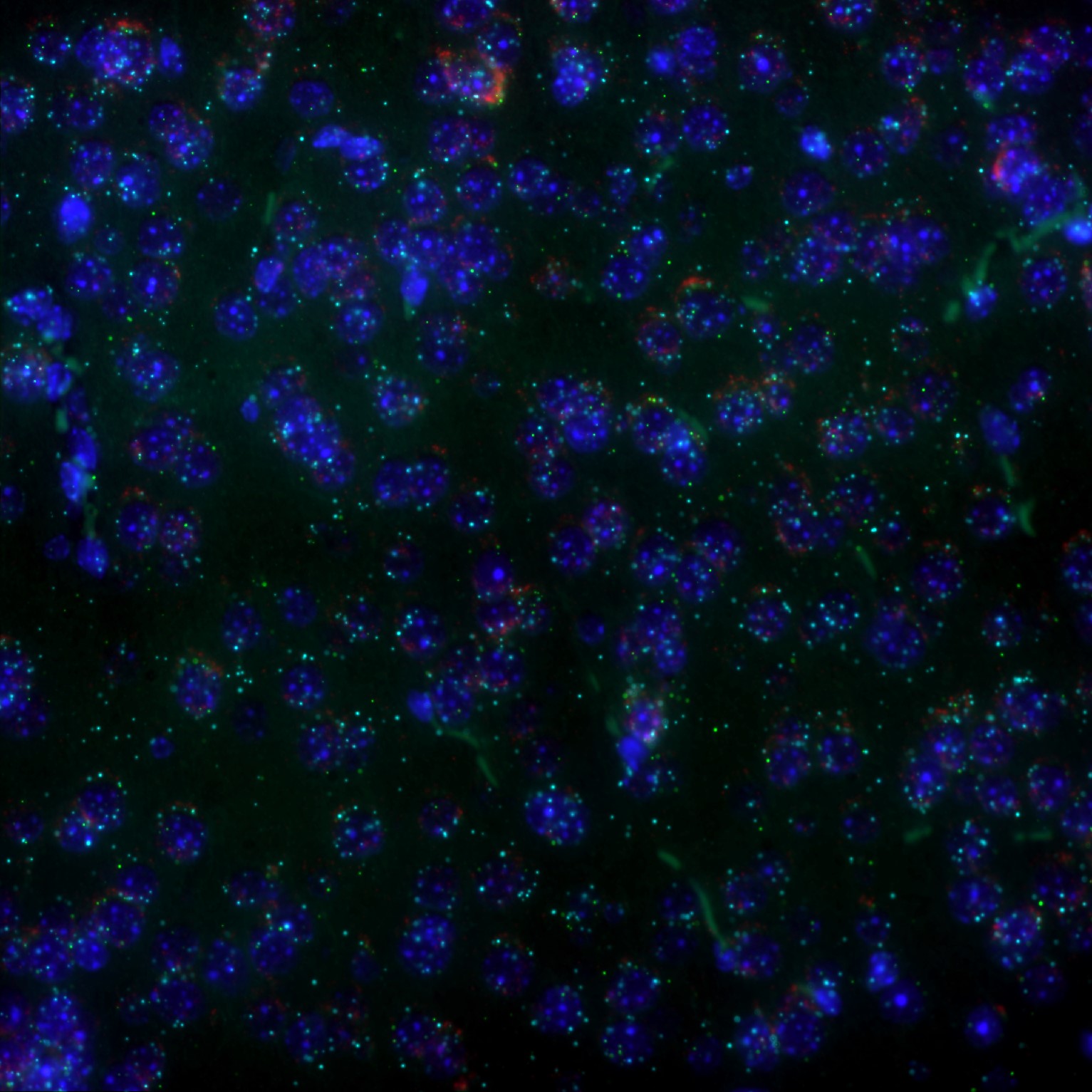
Scan data is delivered in the Nikon .nd2 format. Nikon Elements Viewer and FIJI can be used to open your files.
Services
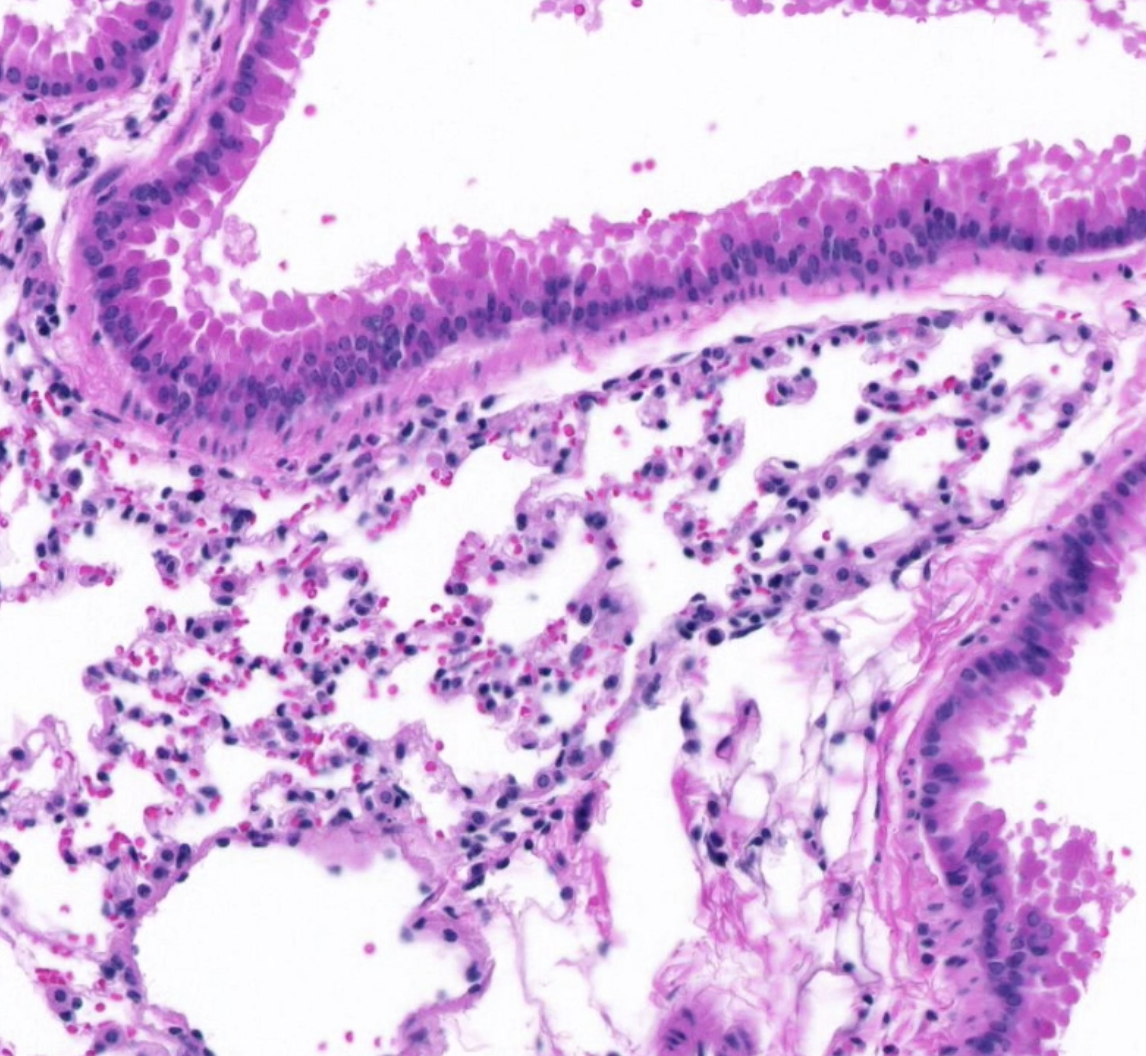
High-resolution digital Slide Scanning at 20x and 40x (0.75 NA) Brightfield on the Huron TissueScope LE.
Magnification:
Widefield Fluorescence - 10X or 20X whole slide scans*
*Other magnifications available upon request and may be subject to different rates.
RNAscope - 40X or 60X*
*Optimal magnification and need for Z-stack is determined by UIC Staff based on your region of interest and sample thickness.
Available Channels: